
Overview
Starting from HappySignals Ticket-Based IT Experience version 2.0.2, the legacy Agent Widgets have been replaced by the HappySignals Agent Feedbacks Data Visualization component.
This visualization can be added to ServiceNow Dashboards using the standard Data Visualization framework, providing agents and supervisors with access to HappySignals feedback data within ServiceNow.
Prerequisites
Before creating the dashboard, verify the following:
- HappySignals Ticket-Based IT Experience application version is 2.0.2 or later
- You have permissions to create and edit ServiceNow Dashboards
- The HappySignals application upgrade has been completed successfully
Note: The HappySignals Agent Feedbacks Data Visualization is not available in application version 2.0.0.
Step 1: Verify the Application Version
- Navigate to System Applications > All Available Applications > All
- Locate HappySignals Ticket-Based IT Experience
- Verify that the installed version is 2.0.2 or newer
If your instance is running an older version, upgrade the application before proceeding.
Step 2: Create a New Dashboard
- Navigate to Self-Service > Dashboards
- Select New
- Enter a name for the dashboard, for example:
HappySignals Agent Feedback Dashboard - Save the dashboard.
Step 3: Add the HappySignals Data Visualization
- Open the dashboard.
- Select Add Content.
- Choose Data Visualization.
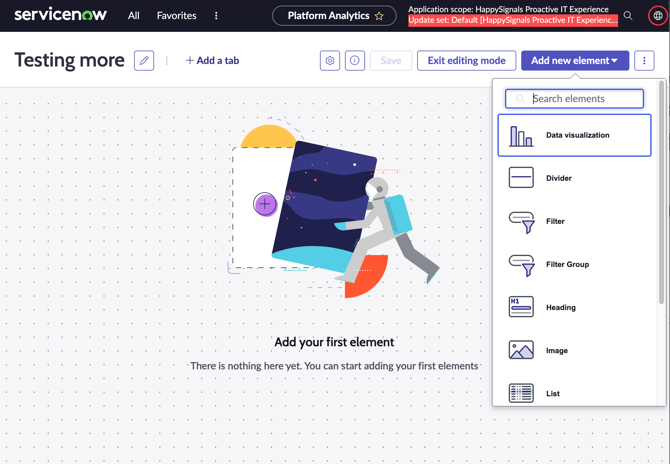
- Select Saved Visualization.
- Search for:
HappySignals Agent Feedbacks - Select the visualization.
- Add it to the dashboard.
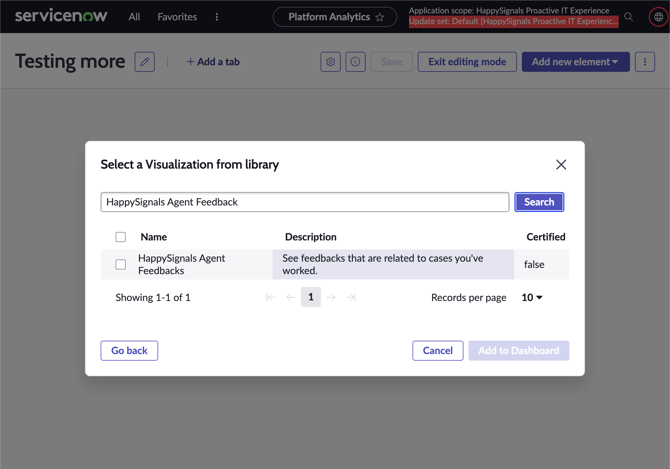
The visualization should now be visible on the dashboard.
Step 4: Configure Dashboard Sharing
To make the dashboard available to agents or supervisors:
- Open the dashboard settings.
- Configure sharing permissions.
- Grant access to:
- Individual users
- Groups
- Roles
According to your organization's requirements.
Step 5: Validate the Dashboard
After the dashboard has been created:
- Open the dashboard as an end user.
- Verify that the visualization loads successfully.
- Confirm that feedback data is displayed correctly.
- Test access using the intended user roles.
Troubleshooting
HappySignals Agent Feedbacks visualization cannot be found
Verify that:
- The HappySignals Ticket-Based IT Experience application has been upgraded to version 2.0.2 or newer.
- The application installation completed successfully.
- Your user account has the required permissions.
Visualization is visible, but no data is displayed
Verify that:
- HappySignals feedback data is available in the instance.
- The HappySignals integration is functioning correctly.
- Any applied dashboard filters are not excluding all results.
Additional Information
The HappySignals Agent Feedbacks Data Visualization was introduced in Ticket-Based IT Experience version 2.0.2 (July 2026) as the replacement for the deprecated Agent Widgets.
For application release details, see:
HappySignals Ticket-Based IT Experience Release Notes (July 2026)