
Executive Summary
The Ticket Rating widget allows end users to give quick 0–10 feedback directly inside the Service Portal immediately after their ticket is resolved. This removes friction from the feedback process, increases response rates, and provides IT with real-time visibility into end‑user experience.
Additionally, when the rating option is also surfaced in the My Requests / My Tickets view, users can easily see which resolved tickets still require feedback. Keeping survey actions visible in the portal further increases engagement and response rates, helping IT collect more complete and representative experience data.
What Is the Ticket Rating Widget?
The Ticket Rating widget is a new HappySignals Service Portal component that displays a 0–10 experience rating scale directly within the ticket view. It enables users to rate their service experience without opening external links or emails.
The widget includes full support for:
-
Organization branding (colors, styles)
-
Multi-language portals through localized message strings
-
Improved logic for determining eligibility and visibility
-
Real-time updates through Service Portal record watchers
This widget is designed to replace all older, customer-built custom widgets that served the same purpose. Many organizations created their own experience measurement widgets using custom logic, but with the release of Ticket-based Experience 2.0, those older solutions are now deprecated and may not work reliably. The new widget provides a standardized, supported, and future-proof replacement.
The widget can be used for any ticket-based experience measurement. The only required condition is that the portal page URL must contain the parameters:
table=<table_name>&sys_id=<ticket_sys_id>
Replacing Older Custom Widgets (Migration Notes)
Many customers previously built custom portal widgets to capture ticket feedback and included bespoke logic. With Ticket-based Experience 2.0, those custom solutions are deprecated and may not behave reliably.
Recommended approach
- Do not reuse the old widget instance or code.
- Add a new instance of HappySignals Ticket Rating to the Standard Ticket (or your custom ticket) page as described above.
- If your legacy widget had special logic (e.g., when to display, custom theming), recreate it using:
- Widget options (colors, behavior),
- Visibility conditions (resolved state, survey status),
- Portal message strings (for localization).
- Archive or remove the old widget from the page to avoid duplication.
Technical Implementation Guide
Prerequisites
- You have access to Service Portal Designer and the Standard Ticket page.
- The HappySignals Ticket-based IT Experience – Ticket Rating widget is installed and available in your instance.
- You know which portal (and ticket page) your end users use.
1) Open the Standard Ticket page in Service Portal Designer
- In the top bar, open the page picker and select Standard Ticket (the out‑of‑the‑box ticket page).
- Switch the application scope to Service Portal – Standard Ticket (top‑right scope selector) before editing.
- Go to Service Portal > Service Portal Configuration → Designer.
Tip: Use Preview to confirm you are on the correct ticket page for your portal.
2) Insert the layout and drop in the widget
- In the Widgets sidebar, open the Layouts tab.
- Drag 12 (full‑width) into the desired spot on the page.
- In Widgets, locate HappySignals Ticket Rating and drag it inside the 12‑column layout.
- Save your changes.
You should see the editor placeholder for the widget once it’s placed on the canvas.
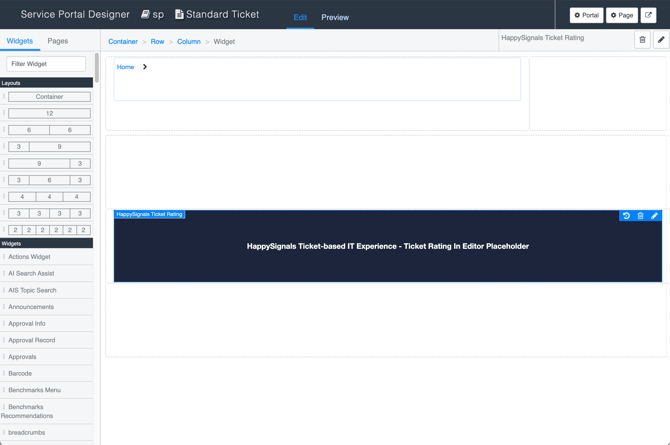
3) Configure widget options (branding & behavior)
- Hover the widget and click the pencil (Edit) icon.
- In Instance Options, set (as needed):
- Button color (e.g.,
#ffecf1) - Button text color (e.g.,
black) - Hover color (e.g.,
#ff7ea5) - Update survey status after rating (enable if you want the survey status set to answered immediately)
- Debug (enable only for troubleshooting in non‑production)
- Button color (e.g.,
- Click Save.
4) Ensure the URL provides table and sys_id
The widget requires table and sys_id parameters in the page URL. The Standard Ticket page already uses them by default:
sp?id=ticket&table=incident&sys_id=<ticket_sys_id>
If you use a custom ticket page, verify that these parameters are present and passed through.
5) Test the widget in the portal
- Open a resolved ticket as an end user in the portal.
- Confirm the page URL includes
tableandsys_id. - You should see the 0–10 rating scale in the ticket body.
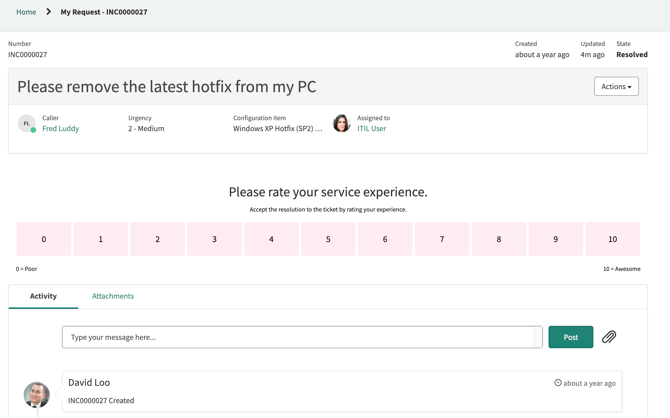
- Click a rating to submit. If enabled, the survey status should update to answered and the UI will refresh accordingly.
6) Publish & communicate
- Publish (or move your changes to update sets for deployment).
- Inform Service Desk and key user groups that ticket rating is now available directly on My Tickets and the ticket page.
How It Looks in Practice
When a ticket is resolved, and the user hasn’t answered the survey, the widget displays a clean 0–10 rating scale directly in the ticket view.
Quick Troubleshooting (admin checklist)
The widget does not appear
- URL missing
tableorsys_id - Ticket not found or no access
- Survey record does not exist
The user cannot vote
related_userdoes not match the current user- Ticket not resolved
- Survey already answered
Rating is not saved
- Survey record failed to update due to ACL
- Script execution permissions are missing
Summary
The Ticket Rating widget provides a modern, intuitive, and effective way to collect ticket-based experience feedback directly inside the ServiceNow portal. By surfacing surveys in the user's natural workflow—especially through the My Tickets view—it significantly improves response rates, increases data coverage, and enhances IT’s ability to understand and improve end‑user experience.
This widget standardizes and future‑proofs the collection of experience data, replacing older, custom-built solutions and supporting the full Ticket-based Experience 2.0 model.