
What Shortcuts are (and are not)
Shortcuts are saved sets of filters that give you one‑click access to the same pre‑filtered view of data in HappySignals. They help you and your colleagues consistently follow the same scope of data.
Shortcuts were previously called QuickSignals.
What Shortcuts are
- Saved collections of filters (for example: Service, Country, Vendor, Assignment Group)
- A fast way to return to the same filtered dataset
- Shareable with colleagues via a link
- Reusable as a base for Live Screens
What Shortcuts are not
- They are not keyboard shortcuts
- They are not static reports or frozen snapshots
- They are not full Experience page state saves
Note
All verified HappySignals documentation uses the term Shortcuts to refer only to saved filter sets, not keyboard shortcuts or UI hotkeys.
Where Shortcuts appear in the UI
You can access Shortcuts from following places in the platform:
Identify → Experience
- Clicking a Shortcut opens the Experience page with that Shortcut’s filters applied.
- Your saved Shortcuts are also available in the Measurement Area / Shortcut menu on the Experience page.
How to create a Shortcut
Shortcuts are created from the Identify → Experience page.
Create a Shortcut
- Go to Identify → Experience
- Select the Service Area (if your organization has multiple, such as IT, HR, or Finance)
- Select the Measurement Area
- Add the filters you want using the filter titles or the search bar
- Select Actions → Save as Shortcut
- Give the Shortcut a name and choose Private or Public
- Save
After saving, the Shortcut will be available on:
- The Share page
- The Experience page Shortcut menu
Note
Shortcuts are created on the Experience page.
Private vs Public Shortcuts
Visibility rules
Private Shortcuts
- Visible only to you in the UI
- Can be opened by others if you share the Shortcut link
Public Shortcuts
- Visible to all HappySignals users in your organization
- Appear in shared Shortcut lists on the Experience page
Role‑based permissions
Shortcut permissions depend on your user role:
-
Observer
- Can create Private Shortcuts
- Cannot create Public Shortcuts
- Can edit their own Shortcuts
-
Member
- Can create Private and Public Shortcuts
- Can edit their own Shortcuts
-
Administrator
- Can create Private and Public Shortcuts
- Can edit their own Shortcuts
Editing or deleting a Shortcut
Only the owner of a Shortcut can edit or delete it.
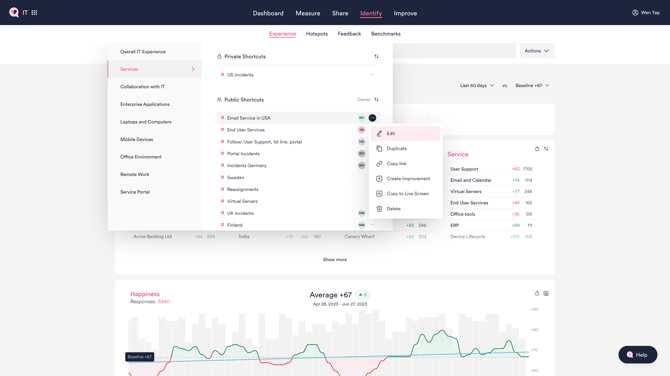
Edit from the Experience page
- Go to Identify → Experience
- Open the Measurement Area / Shortcut menu
- Select the Shortcut and choose Edit shortcut
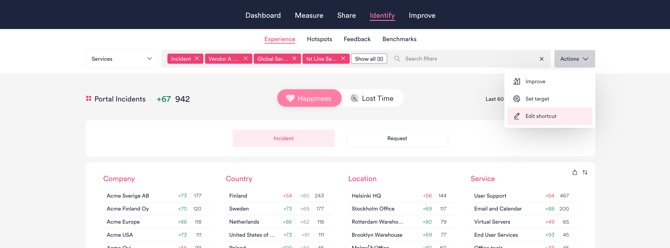
Edit from the Shortcut view
- Open the Shortcut
- Select Actions → Edit shortcut
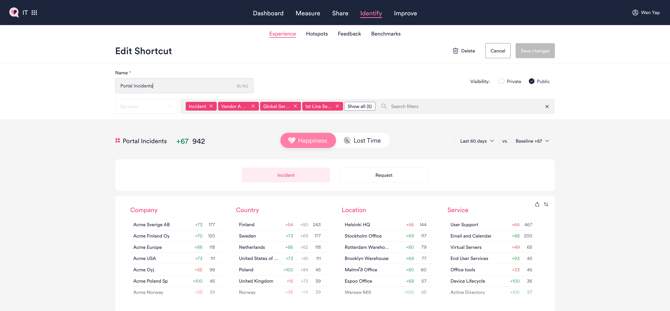
What you can change
- Add or remove filters
- Rename the Shortcut
- Change visibility (Private ↔ Public)
Delete a Shortcut
- Open Edit shortcut
- Select Delete

Note
If you are not the owner of a Shortcut, edit and delete options will not be visible.
Sharing Shortcuts and Live Screens
Sharing a Shortcut
- From the Shortcut actions, you can copy a shareable link
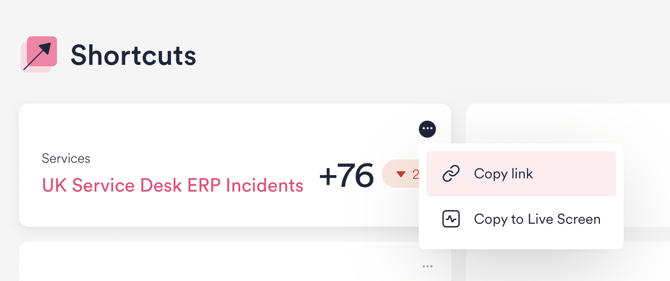
- The link opens the same filtered view for other users
Note
Sharing a Private Shortcut does not bypass authentication or permissions. Recipients must be logged in and have access to the underlying data.
Creating a Live Screen from a Shortcut
- A Live Screen can be created directly from an existing Shortcut
- Select the Shortcut’s three‑dot menu and choose Copy to Live Screen
- The Shortcut’s filters are used as the base configuration
Important
- Only Administrators can create Live Screens
Finding and sorting Shortcuts
To make Shortcuts easier to manage:
- Shortcuts can be sorted on the Identify page
- Sorting options include “Recently viewed by me”, helping you quickly find the Shortcuts you use most often
Important clarifications and best practices
What exactly is saved in a Shortcut?
Official documentation states that Shortcuts save filters. Other Experience page selections (such as time range, Happiness vs. Lost Time, Incident vs. Request, or comparison mode) are not explicitly documented in the Shortcut.
Best practice
- Treat a Shortcut as a filter bookmark, not a full view snapshot
Private Shortcut links
Private Shortcut links:
- Require the recipient to be logged in
- Work only within the same HappySignals organization
- Respect existing data access permissions
Private means not discoverable in the UI, not publicly accessible.
Lifecycle behavior
Shortcuts behave as dynamic references to live data:
- They always reflect current data, matching the saved filters
- They do not freeze data at a point in time
Summary
HappySignals Shortcuts store filter definitions are created on the Experience page, can be private or public depending on role permissions, require authenticated access even when shared, and act as dynamic bookmarks rather than fixed snapshots.