
Executive Summary / TL;DR
Proactive IT Experience 2.0 introduces a unified and predictable way to create and run proactive surveys in ServiceNow.
- Surveys are processed by a new Survey Processing Job, replacing all legacy sender jobs.
- Targeting is handled through a dedicated Audience model that shows the expected audience size and daily survey volume.
- Surveys are delivered at the same local time per recipient, with automatic weekend handling.
- Delivery channels (Email and Microsoft Teams) are configured directly in the Proactive application.
- Application‑specific surveys are managed under Enterprise Applications, using Survey Vocabularies.
Most issues with proactive surveys are caused by missing audiences, inactive notifications, or delivery channels that are not fully configured—not by the survey engine itself.
Overview
Proactive surveys are designed to continuously measure end‑user experience, independent of ticket activity. They are used to reach users who may never contact IT, but still experience friction, lost time, or dissatisfaction with IT services and tools.
In Proactive IT Experience 2.0, surveys follow a standardized operational flow:
- The survey defines what is measured,
- The audience defines who is measured,
- Scheduled jobs control when surveys are sent,
- Delivery channels determine how feedback is collected.
This article walks through that flow step by step and highlights the checks that ensure surveys actually send and produce usable data.
1. What Changed in Proactive IT Experience 2.0
If you are upgrading from version 1.x, several core concepts have changed:
- Survey Processing Job replaces the legacy Survey Sender Job.
- Audience model replaces user‑table‑only or script‑based targeting.
- Survey Vocabularies replace free‑text or comma‑separated application definitions.
- Microsoft Teams delivery is built into the Proactive application.
- Timezone‑aware scheduling ensures consistent local delivery.
If you use custom scripts to generate survey links, note:
-
HappyItExLinkCreator.createLink()now returns an object (not a string).
| Area | 1.x | 2.0 |
|---|---|---|
| Audience targeting | Basic targeting | New Audience model + size & daily estimate fields |
| Scheduling | Standard scheduling | Same local time across time zones |
| Application surveys | Enterprise Application config | Specific Application + Survey Vocabularies |
| Teams delivery | Separate IM connector | Built-in configuration inside Proactive |
| Notifications | Previous base conditions | “Status changes to Send Ready” |
Older documentation may still reference 1.x concepts. When configuring new surveys, always follow the 2.0 model described in this guide.
2. Prerequisites
Before creating a proactive survey, ensure that:
- Proactive IT Experience 2.0 (or newer) is installed.
- Integration settings (Endpoint, API Key, Shared Secret) are configured.
- Required admin roles are assigned.
- At least one delivery channel (Email and/or Teams) is configured.
- Audiences and Survey Vocabularies are available if needed.
3. How Proactive Surveys Work (Architecture)
Understanding the architecture helps troubleshoot issues later.
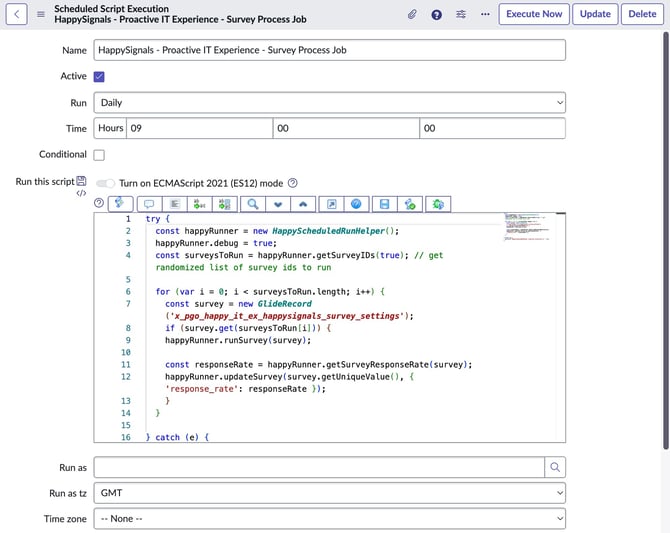
Survey Processing Job
The HappySignals Proactive Survey Processing job:
- Calculates how many surveys should be sent on a given day.
- Selects recipients from the linked audience.
- Creates survey runs with status Send Ready.
If survey runs are never created, the cause is almost always a missing or invalid configuration (audience, frequency, prerequisites).
Note: References to “Survey Sender Job” apply only to versions prior to 2.0.
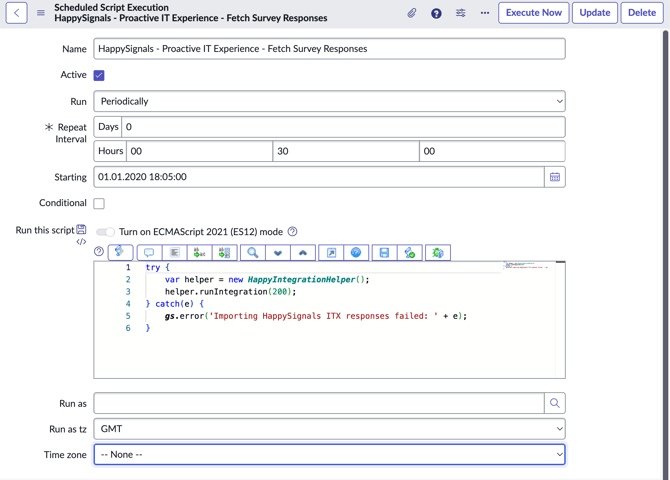
Integration Job
The HappySignals Integration Job imports completed survey responses back into ServiceNow.
If this job is inactive or misconfigured:
- Surveys may send successfully,
- But results will never appear in ServiceNow.
4. Creating a Proactive Survey (Generic Flow)
Step 1 — Create a New Survey
Navigate to:
HappySignals Proactive → Surveys → New
On the survey form:
- Give the survey a clear name.
- Select the appropriate Survey Area.
- Define the survey frequency.
- Leave Active = false until configuration is complete.
At this point, the survey only defines what is measured.
Step 2 — Define the Target Audience (Audience Model)
In Proactive IT Experience 2.0, audiences are created and managed separately.
Navigate to:
HappySignals Proactive → Audiences
Audiences can be built using:
- user attributes,
- devices,
- or other ServiceNow records that reference a user.
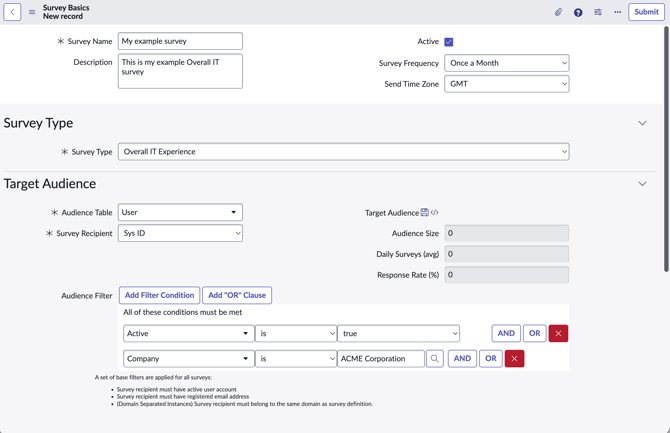
After linking an audience to a survey, ServiceNow automatically calculates:
- Audience Size
- Daily Surveys (avg)
These fields are guardrails against over‑surveying. Always review them before activating the survey.
Step 3 — Configure Scheduling
Surveys in 2.0 use timezone‑aware scheduling:
- Surveys are sent at the same local time for each recipient.
- If the scheduled time has already passed, delivery moves to the next valid day.
- Weekends are skipped automatically.
This behavior is expected and often misunderstood when first enabling surveys.
Step 4 — Configure Delivery Channel (Mandatory)
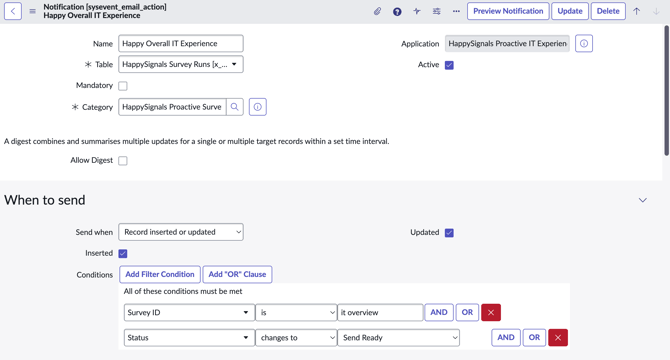
Surveys will not be sent unless at least one delivery channel is active.
- Notification must be Active.
- The trigger condition must be status changes to Send Ready.
Microsoft Teams
- Configured directly inside the Proactive application.
- Requires tenant mapping in the script include HappyProactiveContants and authentication.
Inactive or misconfigured delivery is the most common reason surveys do not send.
5. Enterprise Applications (Application‑Specific Surveys)
Application‑specific surveys are configured using Survey Vocabularies.
Survey Vocabularies
Survey Vocabularies:
- define application names consistently,
- optionally link applications to CIs or ServiceNow records,
- ensure clean analytics and dashboards.
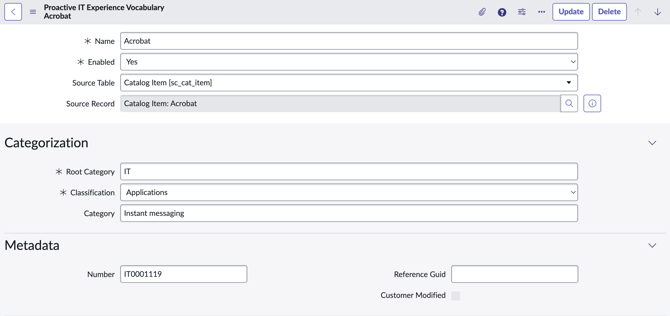
Each application should have a single vocabulary entry. Free‑text or comma‑separated application definitions are no longer used in 2.0.
Once vocabularies are defined, they can be selected in Enterprise Application surveys to control which applications are measured.
6. Before You Activate the Survey (Do This First)
Before setting Active = true, verify that:
- A valid audience is linked.
- Audience Size and Daily Surveys (avg) look reasonable.
- The delivery channel is active and tested.
- Survey ownership and follow‑up responsibility are defined.
Skipping these checks is the most common cause of failed proactive deployments.
Troubleshooting by Symptom
“No surveys are being sent”
- Survey Processing Job inactive
- No audience linked
- Audience size is zero
“Survey runs exist, but nothing is delivered”
- Email notification inactive
- Teams delivery is not configured
- Status condition incorrect
“Surveys send, but results never appear”
- Integration Job inactive
- Invalid integration credentials
“Application names look wrong in reports”
- Duplicate or inconsistent Survey Vocabulary entries
“Surveys send at unexpected times”
- Timezone‑aware local scheduling is working as designed
Final Notes
Proactive IT Experience 2.0 is designed to make survey behavior predictable and scalable. When issues occur, they are almost always caused by missing configuration steps rather than platform defects.