
Once configured, Entra provisions and updates user records in HappySignals automatically and keeps them in sync as your directory changes.
What this does (and doesn't)
HappySignals uses SCIM to keep an up-to-date registry of the employees and contractors who can answer HappySignals surveys, and to enrich survey responses with organisational context (department, country, employment details).
SCIM at HappySignals is not used for login or authentication. Provisioned identities do not sign in to HappySignals. Password sync and group provisioning are not supported.
Before you start
You need:
- Administrator access to your HappySignals tenant.
- Administrator access to your Microsoft Entra tenant.
- Your HappySignals tenant subdomain and environment (e.g.
emea,us,uk). If you're unsure, HappySignals support will confirm both in Step 1.
Step 1: Request OAuth credentials from HappySignals
Email support@happysignals.com to request SCIM provisioning credentials. Include:
- Your HappySignals tenant subdomain.
- The environment your tenant is hosted in (if known).
- The name of the person or team who will administer the Entra integration.
Support will return:
- A Client ID.
- A Client Secret.
- Confirmation of your SCIM base URL and Token Endpoint (see Step 2).
Store the Client Secret securely. It cannot be retrieved later — if lost, a new one must be issued.
Step 2: Find your SCIM base URL and token endpoint
Your endpoints follow this pattern:
- SCIM base URL:
https://<tenant>.<environment>.happysignals.com/scim/v2/ - Token Endpoint:
https://<tenant>.<environment>.happysignals.com/oauth/token/
For example, for a customer acme in the emea environment:
- SCIM base URL:
https://acme.emea.happysignals.com/scim/v2/ - Token Endpoint:
https://acme.emea.happysignals.com/oauth/token/
Environments include e.g. emea, us, uk. HappySignals support confirms your exact environment during Step 1.
Step 3: Add HappySignals to Entra
- Sign in to the Microsoft Entra admin center as a directory administrator.
- Go to Identity → Applications → Enterprise applications → New application.
- Select Create your own application
- Give the application a name eg. HappySignals Surveys and select the application type as Integrate any other application you don't find in the gallery (Non-gallery)
- Finally click on Create
Step 4: Configure automatic provisioning
- Open the newly created Enterprise application.
- Go to Provisioning and set Provisioning Mode to Automatic.
- Under Admin Credentials, fill in:
| Field | Value |
|---|---|
| Tenant URL | Your SCIM base URL from Step 2 |
| Client ID | From Step 1 |
| Client Secret | From Step 1 |
| Authentication Method | OAuth 2.0 client credentials grant |
| Token Endpoint | Your Token Endpoint from Step 2 |
- Click Test Connection. You should see a success message.
- Click Save.
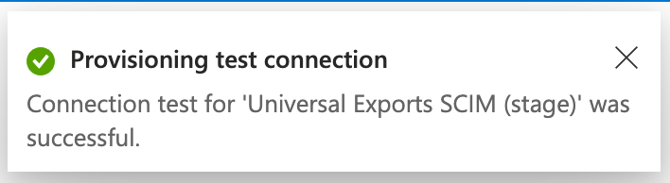
Microsoft Entra ID performs the OAuth 2.0 client credentials exchange itself and refreshes access tokens automatically. No manual token handling is required.
Step 5: Map attributes
Under Mappings, edit the Provision Microsoft Entra ID Users mapping. Use the following table as a starting point. Remove any mappings for attributes your HappySignals integration does not use and add all other per the description from SCIM API Reference doc.
Remove the Provision Microsoft Entra ID Groups mapping entirely (group provisioning is not supported).
| Entra attribute | SCIM attribute | Notes |
|---|---|---|
userPrincipalName |
userName |
Required. Must be unique per tenant. |
objectId |
externalId |
Stable Entra identifier. |
Switch([IsSoftDeleted], , "False", "True", "True", "False") |
active |
Deactivating a user in Entra sets active to false in HappySignals. |
givenName |
name.givenName |
|
surname |
name.familyName |
|
mail |
urn:ietf:params:scim:schemas:extension:happysignals:identifiers:2.0:User:email |
Optional identifier. |
department |
urn:ietf:params:scim:schemas:extension:enterprise:2.0:User:department |
Enterprise User extension. |
companyName |
urn:ietf:params:scim:schemas:extension:enterprise:2.0:User:organization |
Enterprise User extension. |
country |
urn:ietf:params:scim:schemas:extension:happysignals:organization:2.0:User:country |
Also normalises the response country in HappySignals reporting. |
For the full list of supported attributes and extensions, see the SCIM API reference article.
HappySignals SCIM API Reference
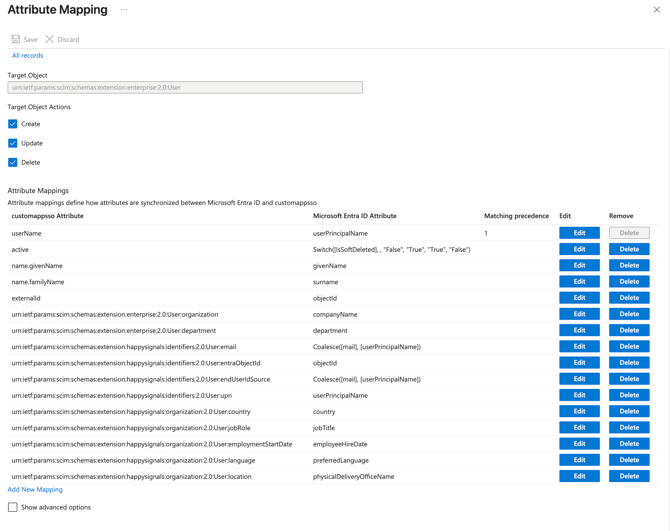
Step 6: Assign users and start provisioning
- In the Enterprise application, go to Users and groups → Add user/group and assign the users (or groups of users) that should sync to HappySignals.
- Return to Provisioning and set Provisioning Status to On.
- Click Save.
Provisioning runs on Entra's schedule (typically every 40 minutes for incremental sync). To monitor progress, open Provisioning logs.

Troubleshooting
| Symptom | Likely cause | Fix |
|---|---|---|
Test Connection fails with 401 invalid_client |
Wrong Client ID or Client Secret. | Verify the values with support. If lost, request new credentials via support. |
| Test Connection fails with 401 "Invalid token audience" / "issuer" | Token Endpoint and Tenant URL point to different HappySignals subdomains. | Both must be on the same <tenant>.<environment>.happysignals.com domain. |
Users appear in the log with 400 invalidFilter |
Entra sent a filter expression HappySignals does not support. | Contact support with the full Provisioning log entry. |
400 invalidValue on a specific user |
Extension attributes were sent without a resolvable endUserIdSource. |
Add or correct the mapping for endUserIdSource, or ask support to seed the value. |
409 uniqueness on create |
A stale identity with the same userName exists in HappySignals. |
Contact support to remove or reconcile the stale record. |
| Provisioning logs show 401 "Token has expired" transiently | Access token expired between Entra's cache and the request. | Ignored by Entra; it refreshes on the next attempt. Escalate if the error persists across many cycles. |
Next step
For the underlying API contract — endpoints, attributes, filtering, pagination, and error semantics — see the SCIM API reference article.