
Only users with the Administrator role can invite and manage user permissions.
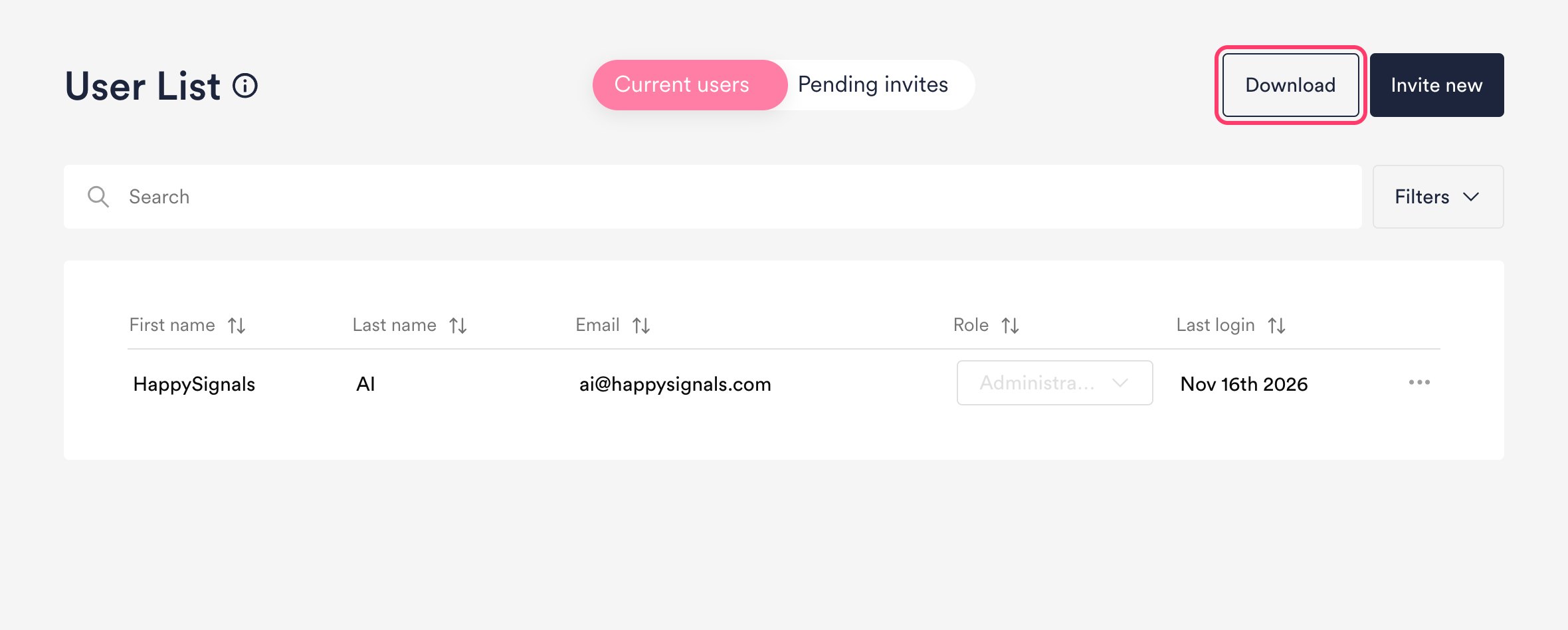
In Settings > User list, you can view all HappySignals users in your organization, invite users, and manage users and roles. If you are an administrator, click your user name at the top right corner, then click Settings. Read more in the relevant sections:
Invite users and set their roles
1. Go to Settings > User list, and click Invite new
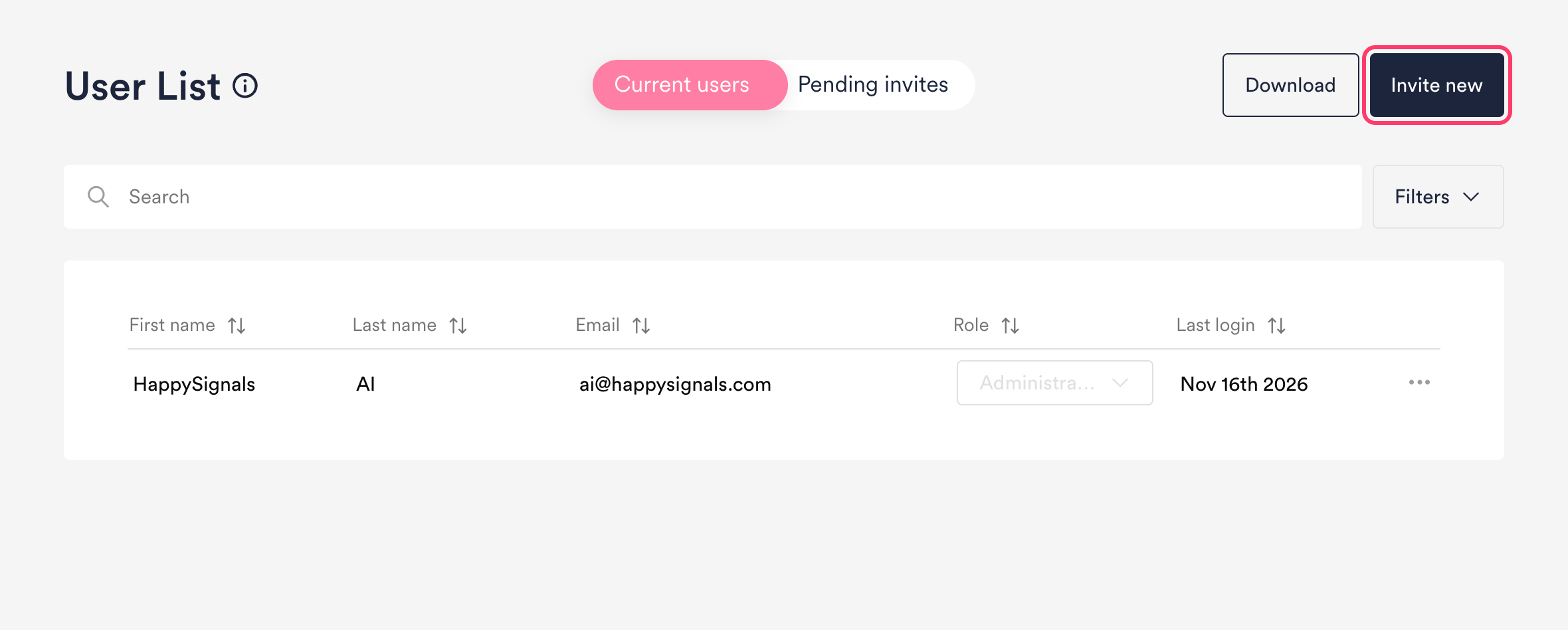
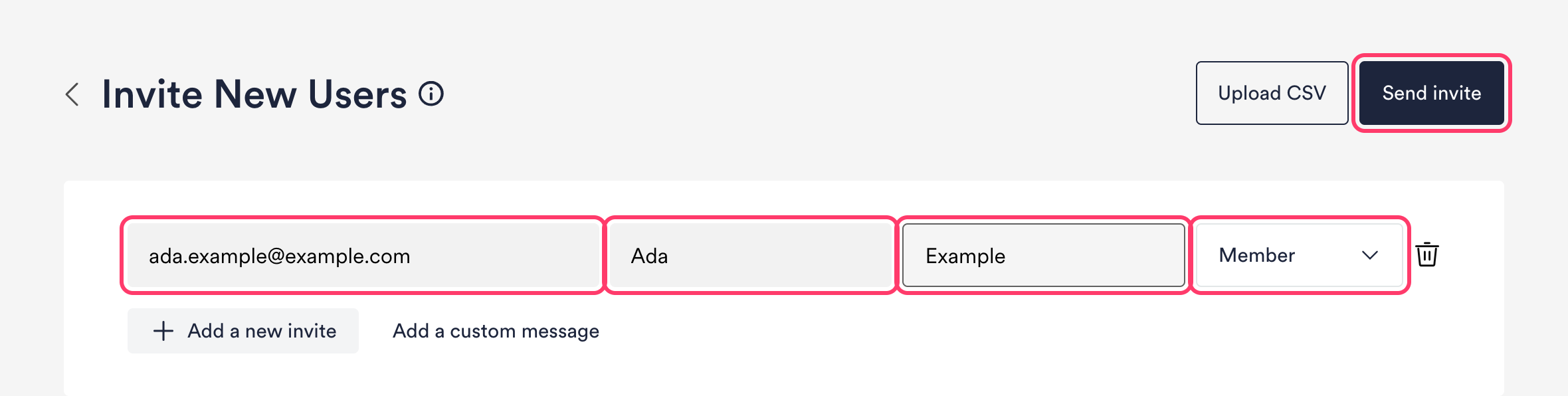
2. Either invite users manually, or invite many users by uploading a CSV file:
- Invite by entering user information manually: Enter the invitee(s) email address, first name and last name, and set their user role. Learn more about role permissions
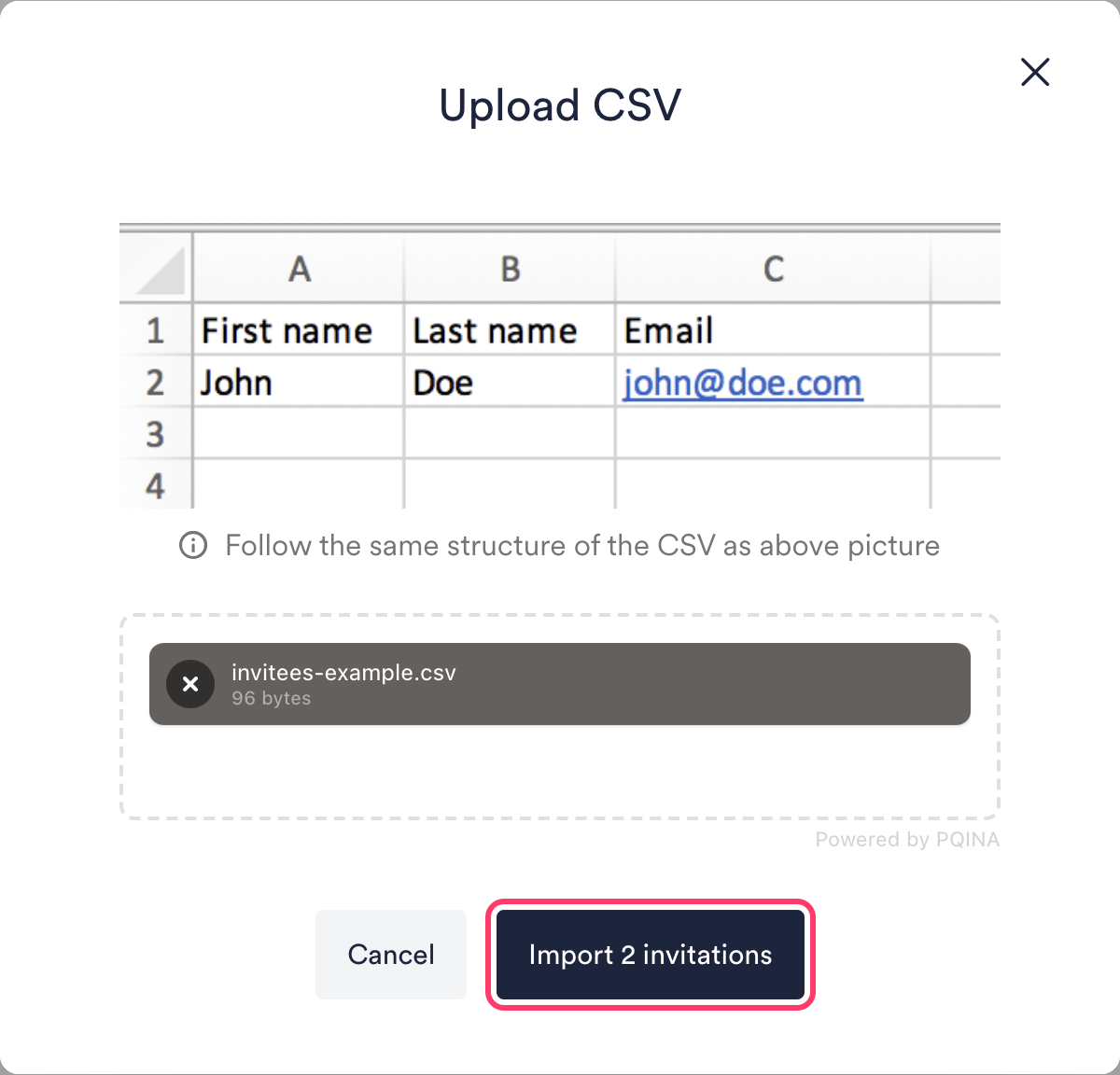
- Invite by uploading a CSV file: Click Upload CSV, then upload a file that follows the example content. If your file is correctly formatted, click Import and your list of users will be automatically populated on screen. If not, please check the CSV file.
3. Send your invitation(s) immediately, or if you wish, add a personalized message before clicking Send invite.
4. Your invitees will soon receive an email invite. Their invitation is visible under Pending invites until they accept it.
User role permissions
User roles control access to your organizational settings and what each user can do with the platform features. Below is a list of the permissions each user role has:
| Observer | Member | Administrator | |
|---|---|---|---|
| Access all views in HappySignals | Yes | Yes | Yes |
Create Monthly Reports
|
No No - |
Yes No Yes |
Yes Yes Yes |
| Create and edit (their own) Notes | No | Yes | Yes |
|
Create Private Shortcuts Create Public Shortcuts Edit or delete Public Shortcuts Edit or delete their own Shortcuts |
Yes No No Yes |
Yes Yes No Yes |
Yes Yes Yes Yes |
| Tag Feedback | No | Yes | Yes |
Create Initiatives or XLAs
|
No Only those who are assigned as Responsible for |
Yes Only those who created or are assigned as Responsible for |
Yes Yes for all |
Create Additional Questions
|
No No - No |
Yes No Yes No |
Yes Yes Yes Yes |
| Create and edit Objectives | No | No | Yes |
| Set and edit Targets | No | No | Yes |
| Create Live Screens | No | No | Yes |
| Manage administrative settings | No | No | Yes |
Remove Membership
Find the user whose membership you want to remove in Settings > User list.
- Click the three-dot action menu on the row for that user
- Click "Remove user"
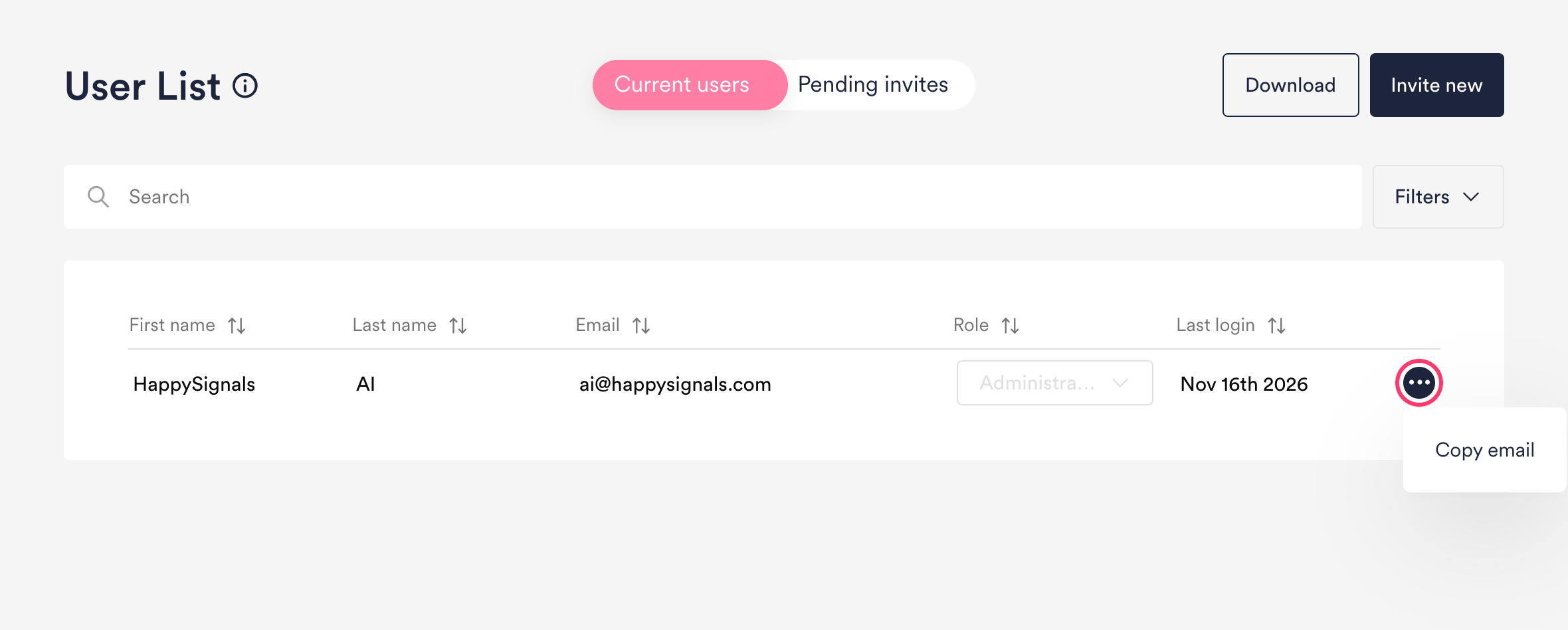
Note: Removing a membership does not delete the user; it only removes their access to your organization's HappySignals instance. The user object is deleted automatically 6 months after the user's last login. Important: This automatic deletion does not apply to users with the Administrator role. At least one administrator must remain in the system at all times to ensure continued access and management capabilities.
Download User Data
To download user data, click Download.
Questions? Comments? Chat or email support@happysignals.com